If you have ever wondered why your VMs can’t communicate to each other even though everything is connected, you’re not alone. It took me a few tries to understand how VPC peering actually works in Google Cloud Platform.
This guide walks through a real-world scenario: three VPCs that need selective connectivity. We’ll use a PostgreSQL database to prove what works and what doesn’t when dealing with non-transitive routing — something that matters when you’re connecting multiple VPCs together.
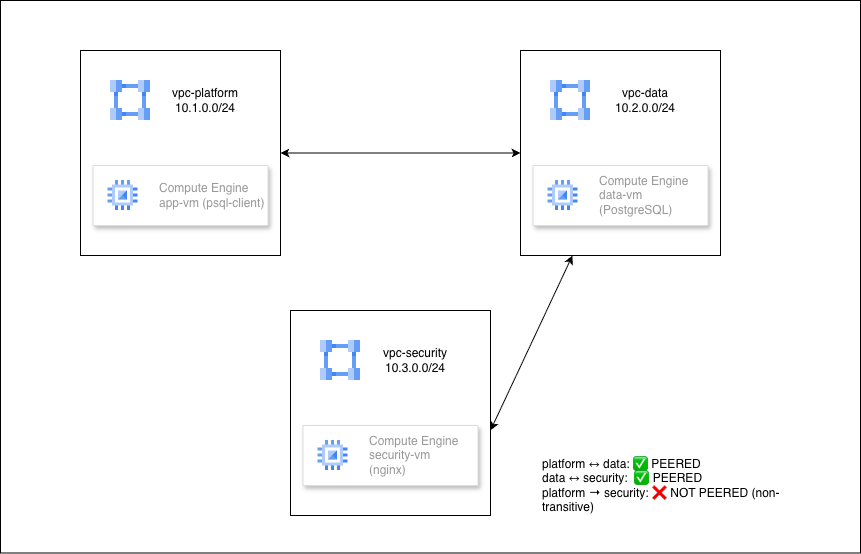
We’re setting up three Virtual Private Cloud networks:
We’ll peer Platform ↔ Data and Data ↔ Security, but Platform will NOT be able to reach Security even though they’re both connected to Data. That’s non-transitive routing.
Here’s what the network topology looks like:
In production environments, you can’t just throw everything into one giant VPC. Different teams own different resources. Compliance requirements demand network isolation. But services still need to communicate.
VPC peering gives you that selective connectivity. It’s faster than VPN tunnels (no encryption overhead), cheaper than Shared VPC for multi-tenant scenarios, and more secure than assigning public IPs to all resources.
VPC Network Peering connects two Virtual Private Cloud networks so that resources in each network can communicate using private IP addresses. Traffic stays within Google’s network and doesn’t traverse the public internet.
This is what we’ll prove in this demo. From Google Cloud documentation:
VPC Network Peering is not transitive. If VPC network N1 is peered with N2, and N2 is peered with N3, there is no connectivity between N1 and N3 unless you explicitly create a peering connection between them.
In practical terms:
This design is intentional for security and network isolation. You’ll see this behavior firsthand in Step 8.
You’ll need:
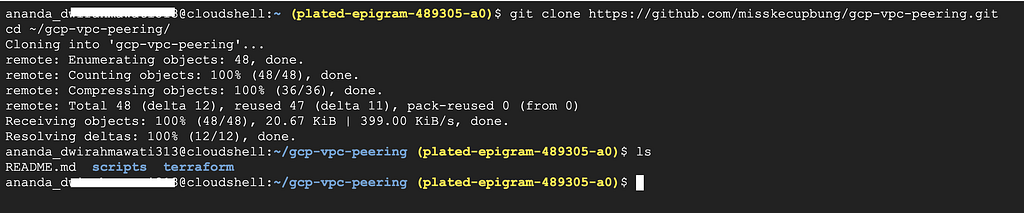
Clone the repository:
git clone https://github.com/misskecupbung/gcp-vpc-peering.git
cd ~/gcp-vpc-peering/
Set your project ID and enable required APIs:
export PROJECT_ID="your-project-id"
gcloud config set project $PROJECT_ID

gcloud services enable compute.googleapis.com
gcloud services enable iap.googleapis.com
These APIs are required for:

Navigate to the Terraform directory and set up your configuration:
cd ~/gcp-vpc-peering/terraform

cp terraform.tfvars.example terraform.tfvars

# Update the project ID in `terraform.tfvars`
sed -i "s/your-project-id/$PROJECT_ID/" terraform.tfvars

# Verify the configuration:
cat terraform.tfvars
You should see your actual project ID in the file.

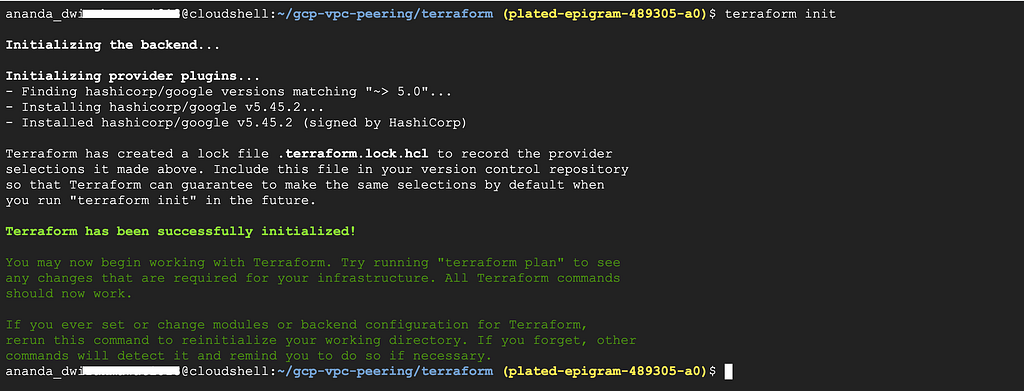
Initialize Terraform:
terraform init
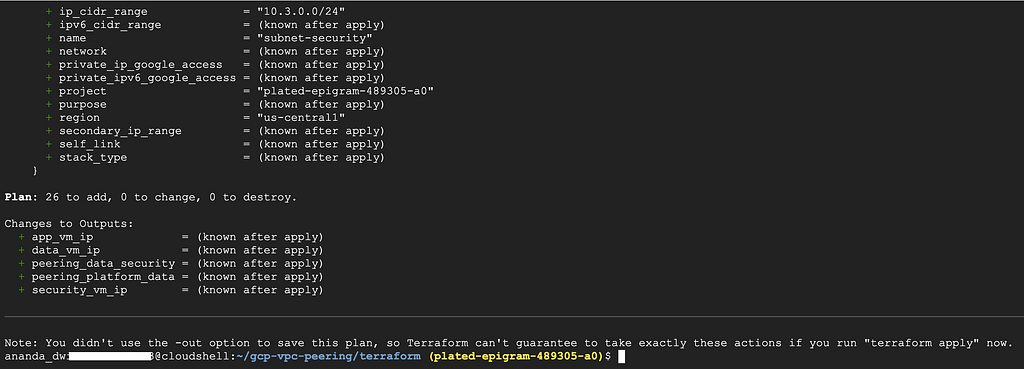
Run the command below to see what resources will be created:
terraform plan
And then apply:
terraform apply
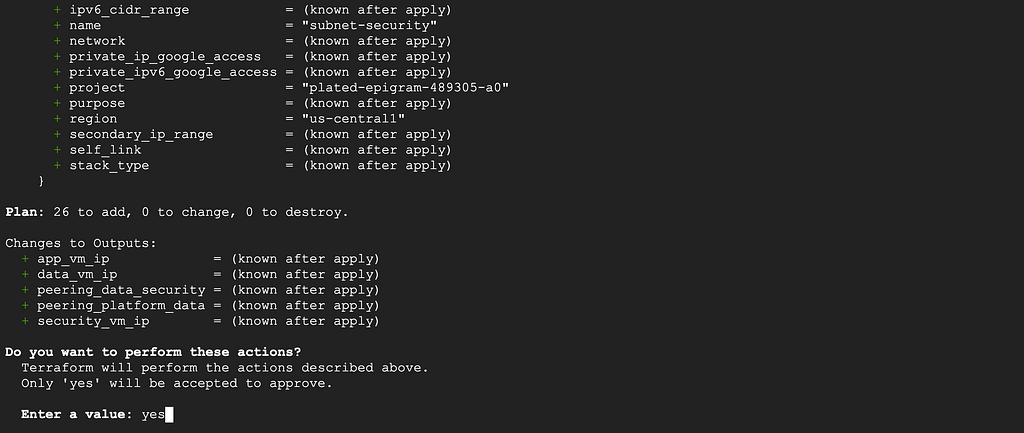
Type yes when prompted. This creates:
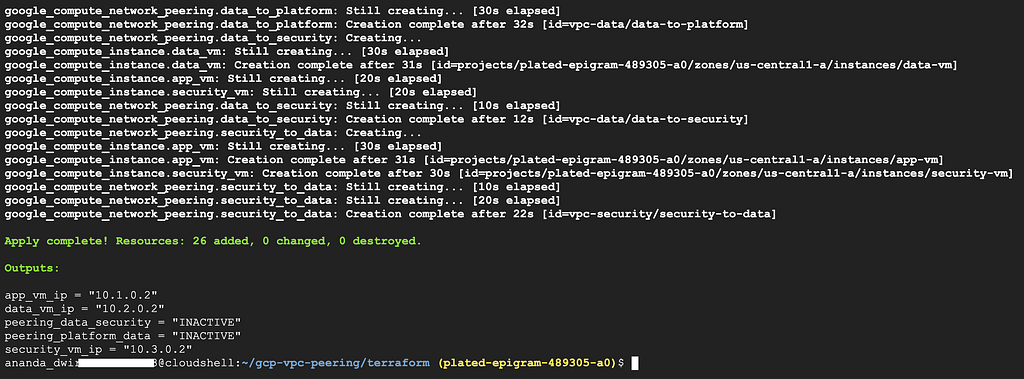
The apply takes about 2–3 minutes. After that, wait another 2–3 minutes for the startup scripts to install packages and configure PostgreSQL.
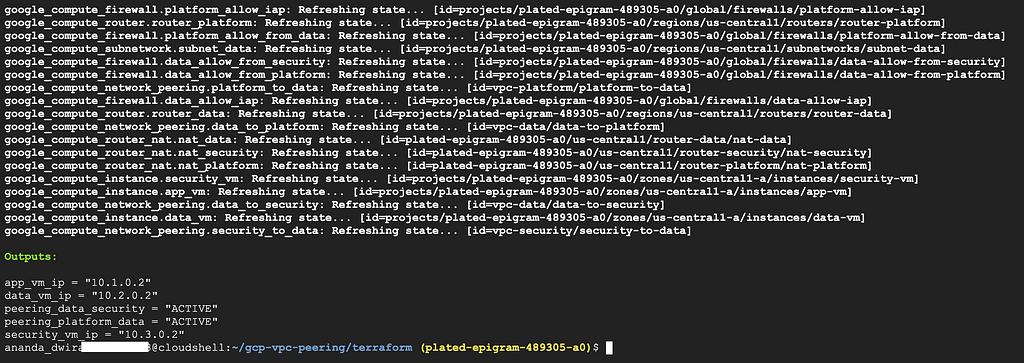
Note: VPC peering might show INACTIVE immediately after creation. Wait 30–60 seconds and run terraform refresh — peering connections need a moment to establish.
Check the outputs:
terraform output
You’ll see the internal IPs and peering status (should be ACTIVE).
Before testing connectivity, confirm that all VPC peering connections are active:
gcloud compute networks peerings list --network=vpc-platform
gcloud compute networks peerings list --network=vpc-data
gcloud compute networks peerings list --network=vpc-security
You should see output like:

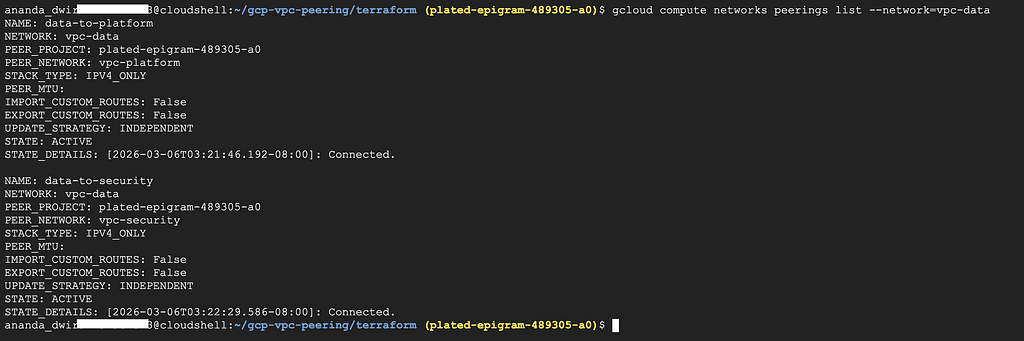

All peering connections should show STATE: ACTIVE
You can also check peering status in the Google Cloud Console:
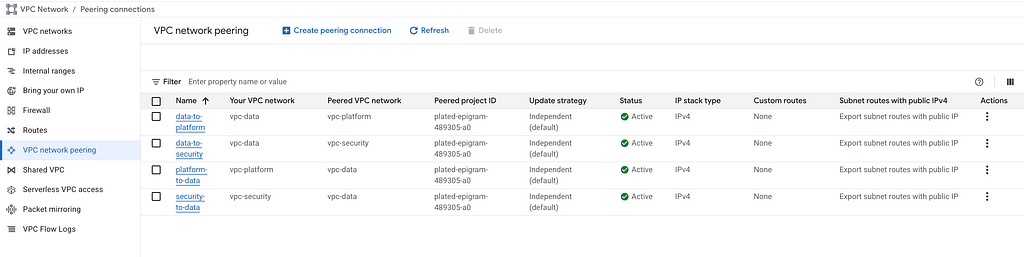
Each peering appears twice (once from each VPC’s perspective):
Let’s check if app-vm in Platform VPC can reach data-vm in Data VPC (they’re peered):
cd ~/gcp-vpc-peering/terraform

DATA_VM_IP=$(terraform output -raw data_vm_ip)

# Ping
gcloud compute ssh app-vm --zone=us-central1-a --tunnel-through-iap \
    --command="ping -c 3 $DATA_VM_IP"
You should see successful ping responses:
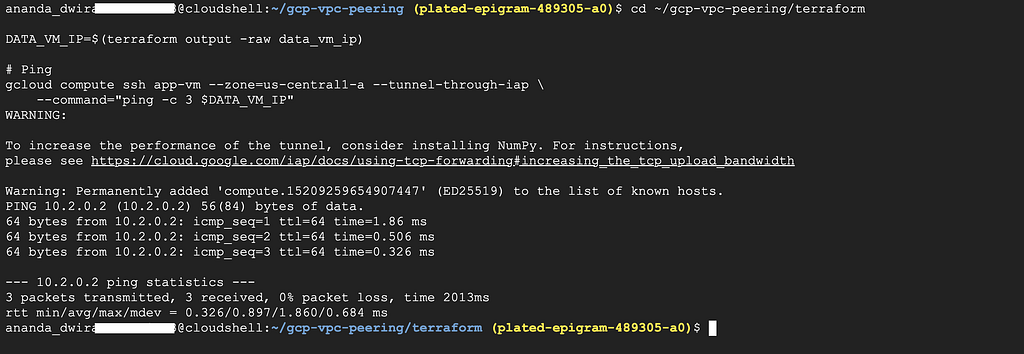
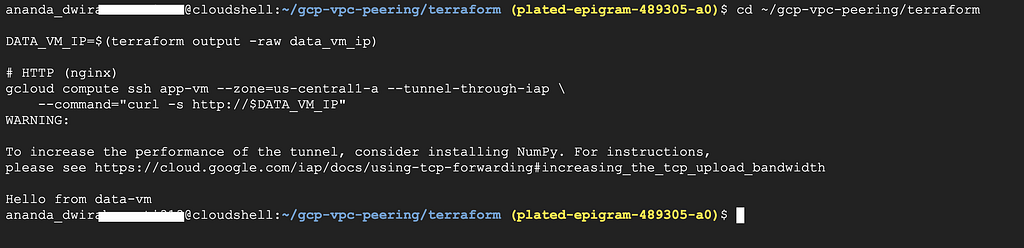
Now try with curl:
cd ~/gcp-vpc-peering/terraform

DATA_VM_IP=$(terraform output -raw data_vm_ip)

# HTTP (nginx)
gcloud compute ssh app-vm --zone=us-central1-a --tunnel-through-iap \
    --command="curl -s http://$DATA_VM_IP"
You’ll see Hello from data-vm. The VPC peering works.
To see how VPC peering creates routes automatically:
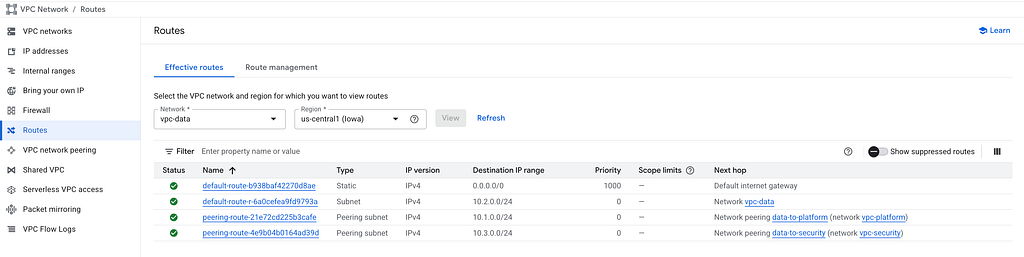
These routes are automatically created by GCP when you establish peering. You can’t edit or delete them manually — they exist as long as the peering exists.
Here’s where it gets interesting. Our data-vm is running PostgreSQL with a sample database. Let’s first check if PostgreSQL is accepting connections:
cd ~/gcp-vpc-peering/terraform

DATA_VM_IP=$(terraform output -raw data_vm_ip)

# Check if PostgreSQL port is reachable
gcloud compute ssh app-vm --zone=us-central1-a --tunnel-through-iap \
    --command="pg_isready -h $DATA_VM_IP -U appuser"
Expected output: 10.2.0.2:5432 — accepting connections
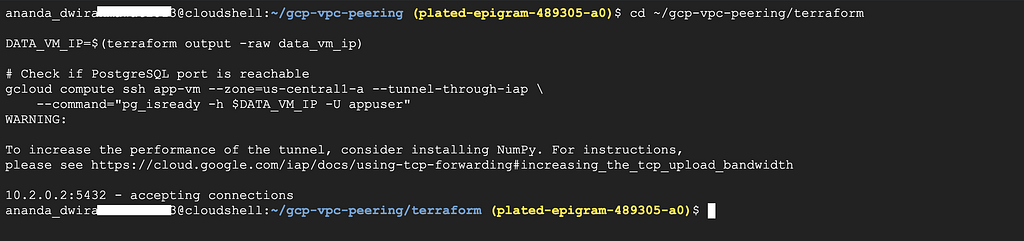
This confirms:
Now query the sample data:
gcloud compute ssh app-vm --zone=us-central1-a --tunnel-through-iap \
    --command="PGPASSWORD=changeme123 psql -h $DATA_VM_IP -U appuser -d appdb -c 'SELECT * FROM orders;'"
You should see order data:
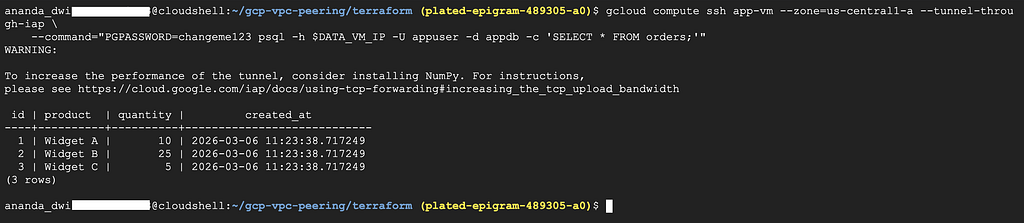
This proves that:
To see which firewall rules allow this cross-VPC database access:
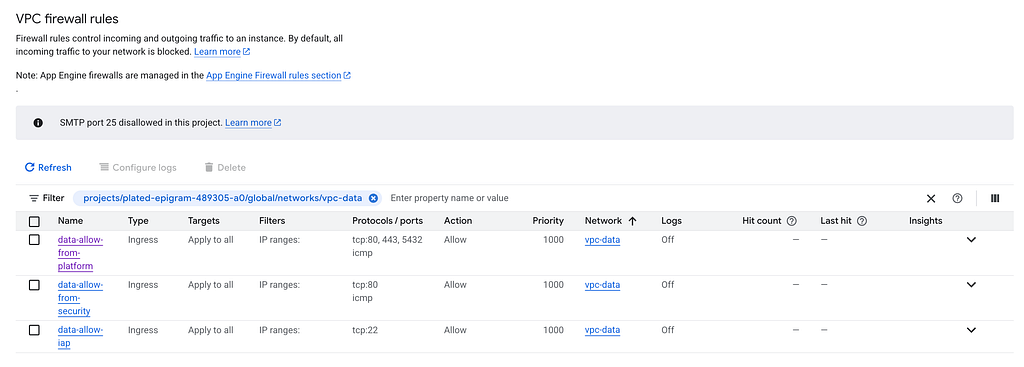
4. Click on data-allow-from-platform to see details:
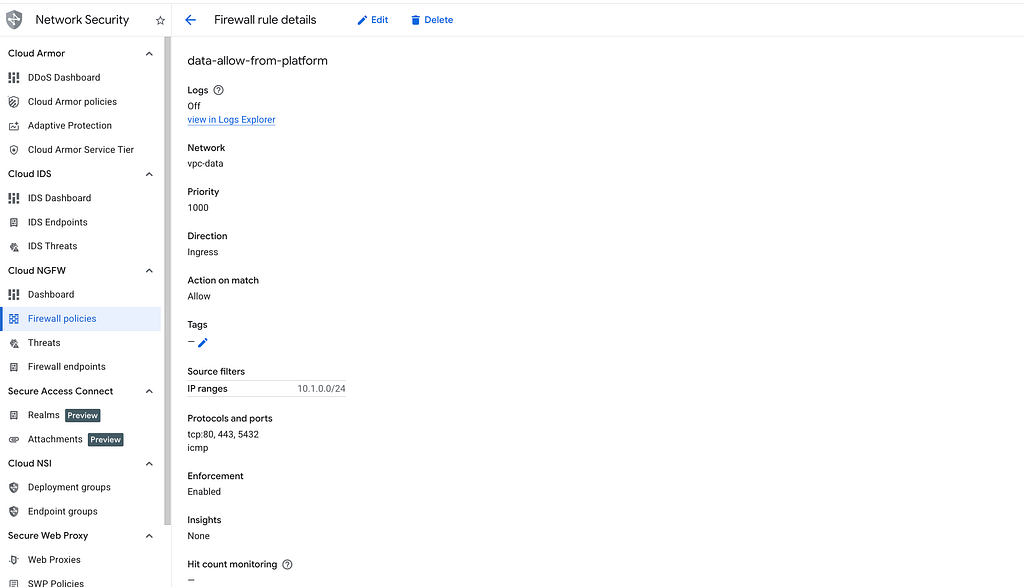
This rule allows app-vm (10.1.0.10) in vpc-platform to reach PostgreSQL on data-vm (10.2.0.2:5432).
Similarly, each VPC has specific rules:
Notice how the rules are explicit about which source network can access which ports. This is important for security.
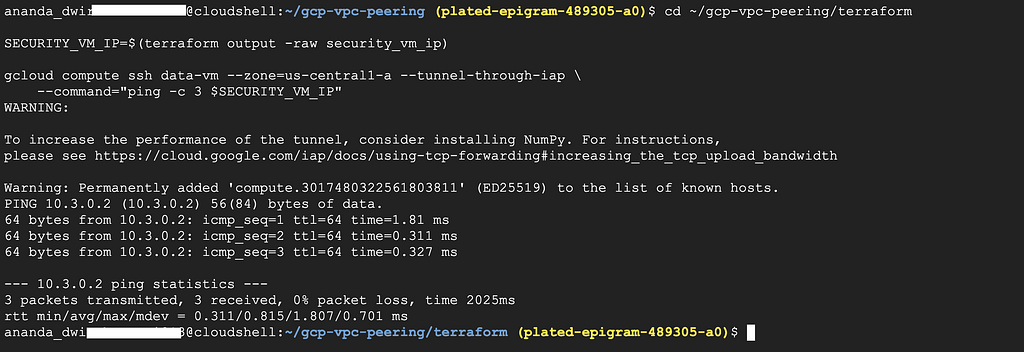
Let’s verify that data-vm can reach security-vm (they ARE peered):
cd ~/gcp-vpc-peering/terraform

SECURITY_VM_IP=$(terraform output -raw security_vm_ip)

gcloud compute ssh data-vm --zone=us-central1-a --tunnel-through-iap \
    --command="ping -c 3 $SECURITY_VM_IP"
Now try HTTP:
cd ~/gcp-vpc-peering/terraform

SECURITY_VM_IP=$(terraform output -raw security_vm_ip)

gcloud compute ssh data-vm --zone=us-central1-a --tunnel-through-iap \
    --command="curl -s http://$SECURITY_VM_IP"
Expected: Hellow from security-vm
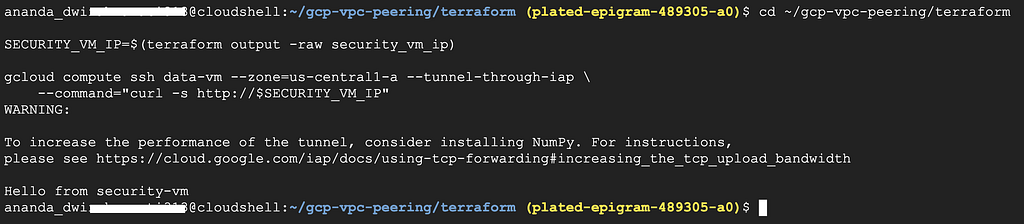
This works because data ↔ security are directly peered.
Now the key test. Platform is peered with data, data is peered with security. Can platform reach security?
cd ~/gcp-vpc-peering/terraform

SECURITY_VM_IP=$(terraform output -raw security_vm_ip)

# This will FAIL — timeout expected
gcloud compute ssh app-vm --zone=us-central1-a --tunnel-through-iap \
    --command="ping -c 3 -W 3 $SECURITY_VM_IP"
Expected: 100% packet loss. app-vm cannot reach security-vm even though both are peered with vpc-data.
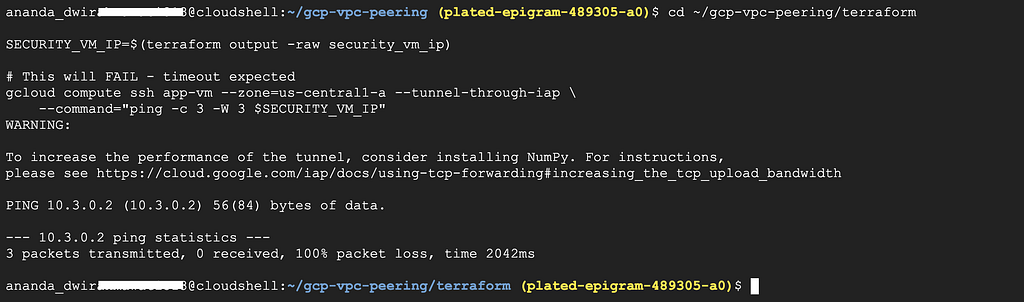
This is non-transitive routing— the most important thing to understand about VPC Peering. Each peering is an independent connection. Traffic does not hop through an intermediate VPC.
If you need platform to reach security, you’d have to create a third peering directly between them.
You can see this in the Cloud Console by checking routes:
1. Go to VPC network → Routes
2. Use the Network filter → Select vpc-platform
3. Filter by Route type → Peering subnet route
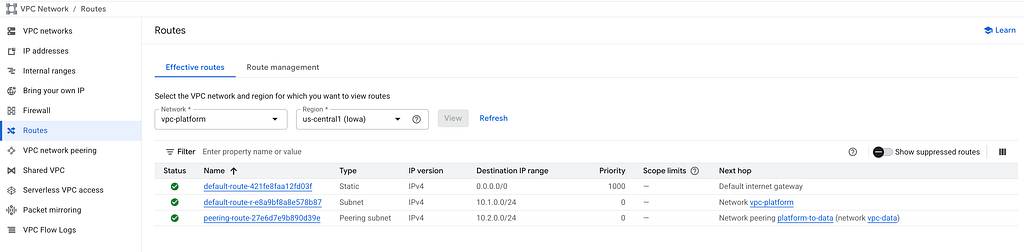
You’ll see:
This proves that routes are NOT transitive. vpc-platform only gets routes for directly peered networks.
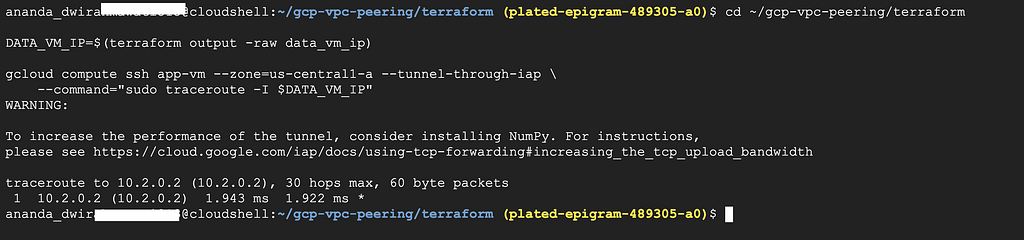
Let’s use traceroute to see the network path:
From app-vm to data-vm (should work):
cd ~/gcp-vpc-peering/terraform

DATA_VM_IP=$(terraform output -raw data_vm_ip)

gcloud compute ssh app-vm --zone=us-central1-a --tunnel-through-iap \
    --command="sudo traceroute -I $DATA_VM_IP"
You should see a single hop — traffic goes directly between VPCs via the peering connection, not through any gateway or public internet.
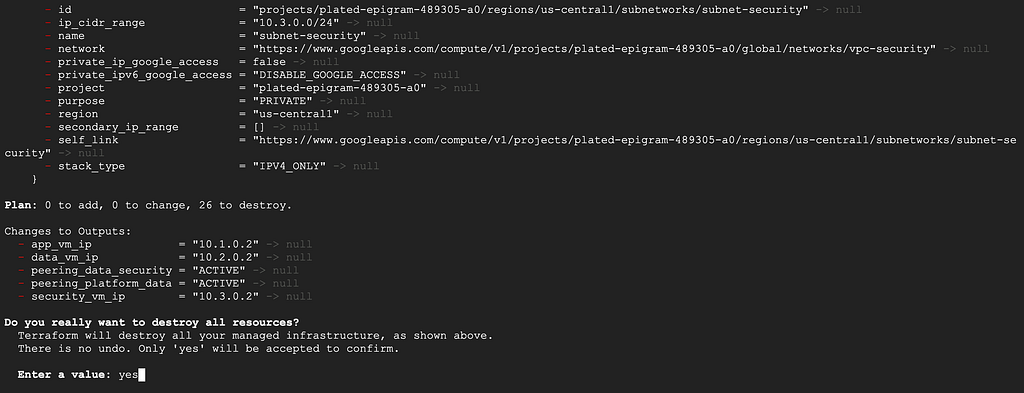
When you’re done testing, destroy all resources:
cd ~/gcp-vpc-peering/terraform
terraform destroy
Type yes to confirm. This removes all VPCs, VMs, peering connections, and firewall rules.
<hr><p>Understanding VPC Peering and Non-Transitive Routing in GCP was originally published in Google Cloud - Community on Medium, where people are continuing the conversation by highlighting and responding to this story.</p>