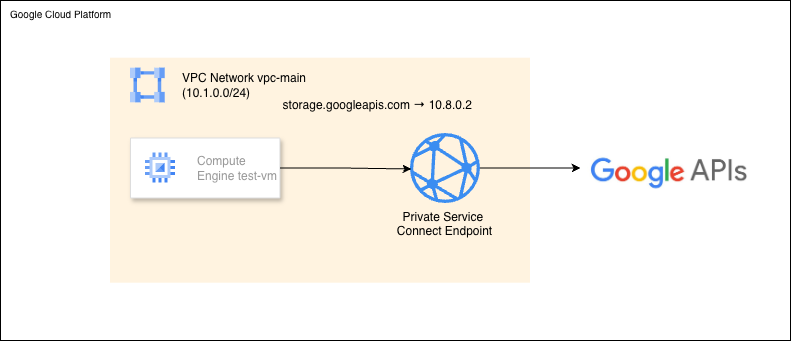
When your VMs are in a private subnet with no external IPs, they can still reach Google APIs like Cloud Storage, BigQuery, and Pub/Sub. This works through Private Google Access.
But there’s a problem. Private Google Access routes traffic through Google’s network, but DNS resolution still returns public IP addresses. Your packets don’t actually leave Google’s infrastructure, but security audits and compliance tools see 169.254.169.254169.254.169.254 and storage.googleapis.com resolving to 142.250.x.xand flag them as concerns.
Private Service Connect fixes this by giving you actual RFC1918 private IPs for Google APIs — making compliance teams happy and network architecture cleaner.
Private Google Access is free and easy, but DNS still returns public IPs — which compliance tools flag. PSC gives you a real private IP inside your VPC that you control.
Here’s how Private Service Connect provides true private connectivity to Google APIs:
test-vm queries "storage.googleapis.com"
  ↓
Cloud DNS private zone intercepts
  ↓
Returns 10.8.0.2 (PSC endpoint) instead of public IP
  ↓
Traffic routes to PSC endpoint within VPC
  ↓
Google's reverse proxy forwards to API backend
  ↓
Response returns via same private path
Clone the repository:
git clone https://github.com/misskecupbung/gcp-private-service-connect.git
cd ~/gcp-private-service-connect/

Set your project ID and enable required APIs:
export PROJECT_ID="your-project-id"
gcloud config set project $PROJECT_ID

gcloud services enable compute.googleapis.com
gcloud services enable dns.googleapis.com
gcloud services enable storage.googleapis.com
gcloud services enable iam.googleapis.com
gcloud services enable cloudresourcemanager.googleapis.com
gcloud services enable iap.googleapis.com
These APIs are required for:

Navigate to the Terraform directory:
cd terraform/
cp terraform.tfvars.example terraform.tfvars
Set your project ID:
sed -i 's/your-project-id/'$PROJECT_ID'/g' terraform.tfvars

# Verify
cat terraform.tfvars

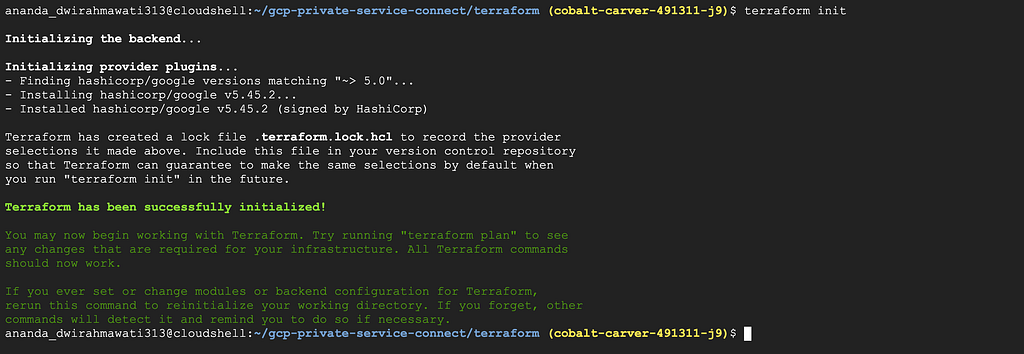
Download the required providers:
terraform init
Check what Terraform will create before applying:
terraform plan

Apply the plan:
terraform apply
Type yeswhen prompted.
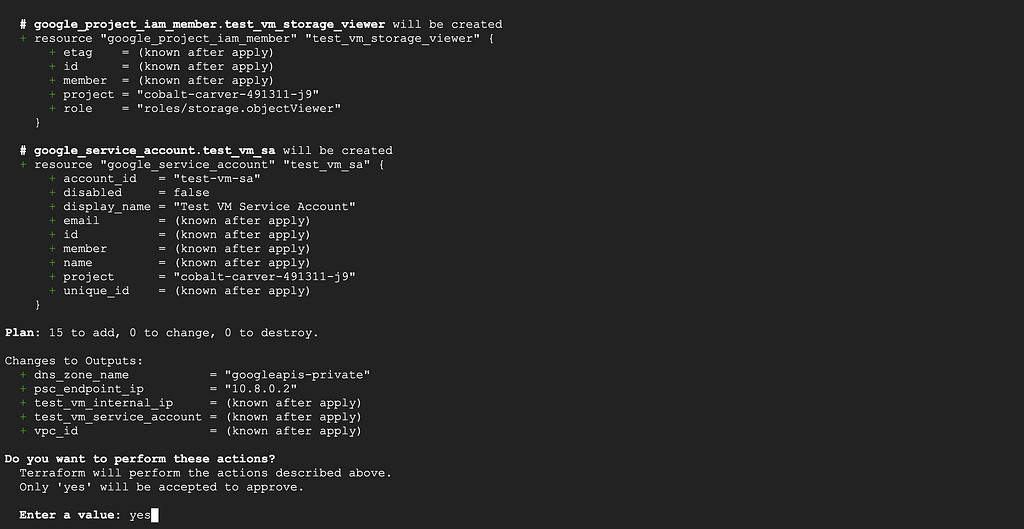
This creates:
Takes about 2–3 minutes.
Console verification — VPC and subnet
Go to VPC Network → VPC networks (console.cloud.google.com/networking/networks). You should see vpc-mainin the list.
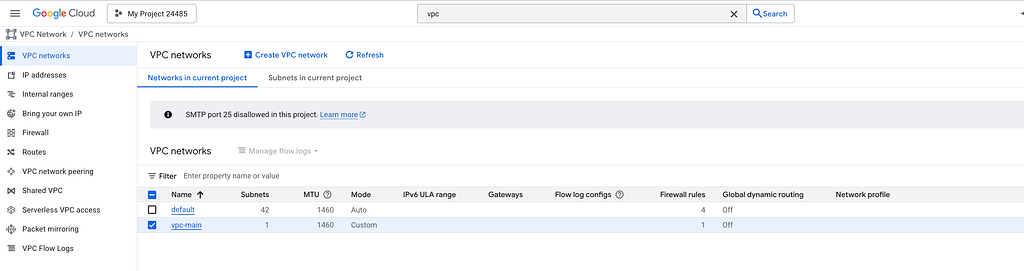
Click it — the subnet subnet-main with range 10.1.0.0/24 should appear under Subnets.

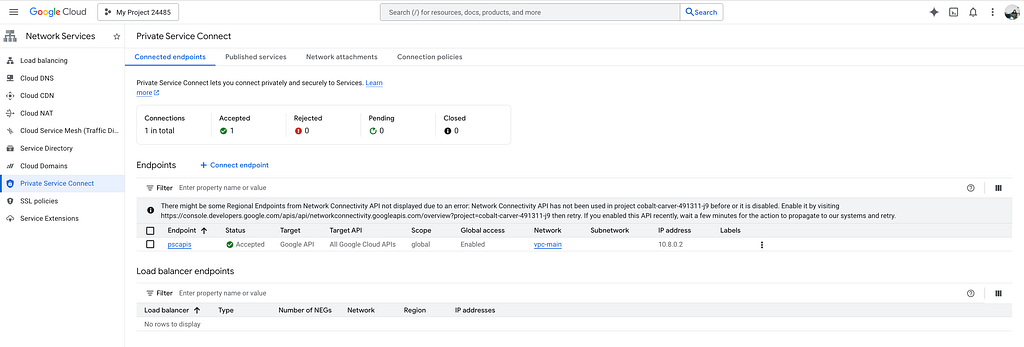
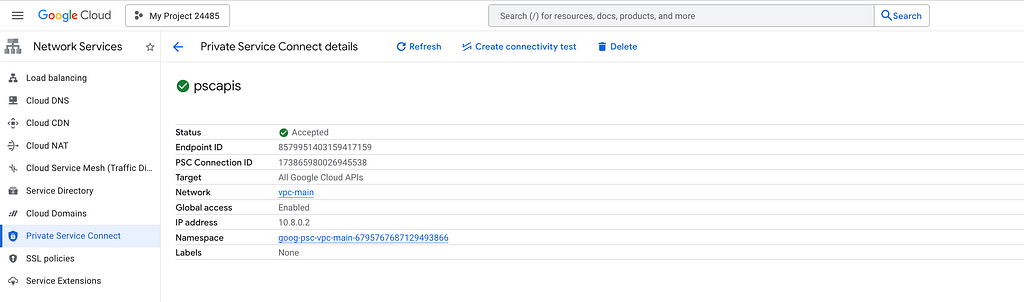
Console verification — PSC endpoint
Go to Network Services → Private Service Connect → Connected endpoints (console.cloud.google.com/net-services/psc/) Click pscapis. You should see:
Console verification — VM
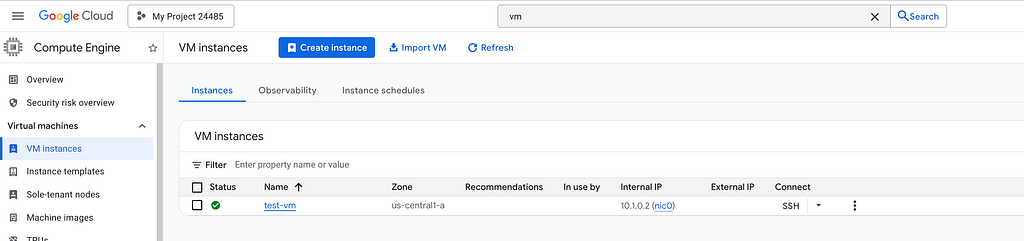
Go to Compute Engine → VM instances (console.cloud.google.com/compute/instances). You should see test-vm with:
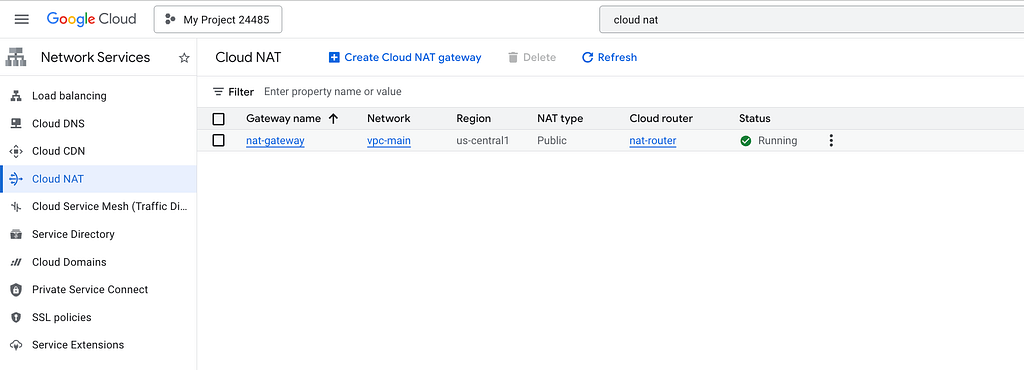
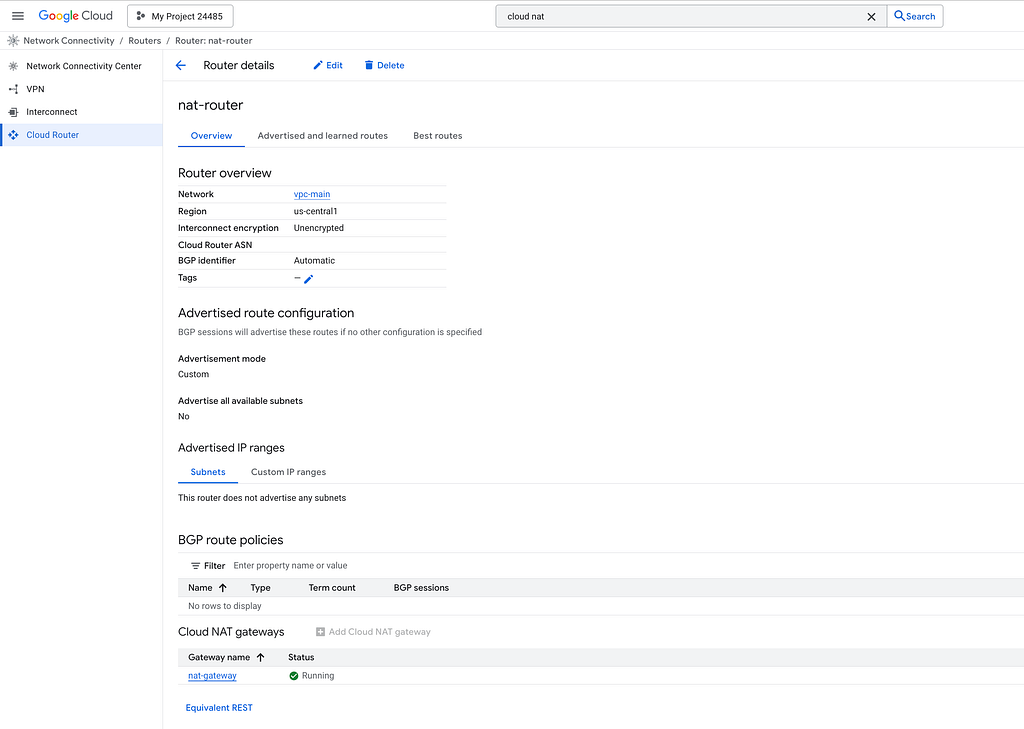
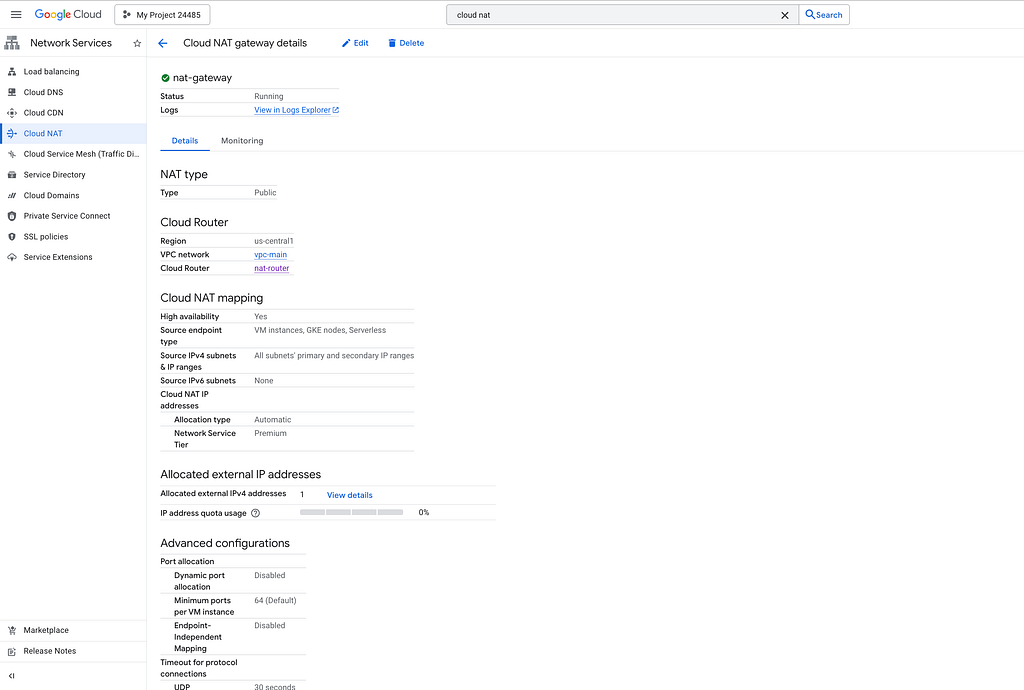
Console verification — Cloud NAT
Go to Network Services → Cloud NAT (console.cloud.google.com/net-services/nat/list). You should see nat-gatewat attached to nat-router in us-central1.
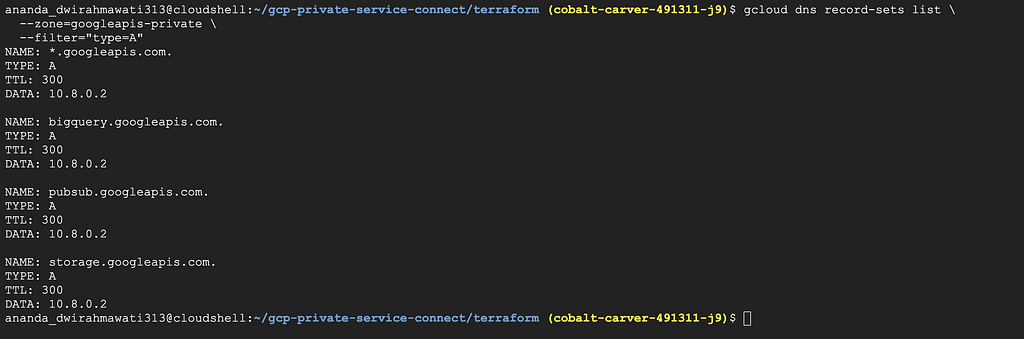
The key piece is DNS configuration. Let’s check what Terraform created:
gcloud dns record-sets list \
  --zone=googleapis-private \
  --filter="type=A"
You should see:
We can verify from Console. Go to Cloud DNS, and you will see:
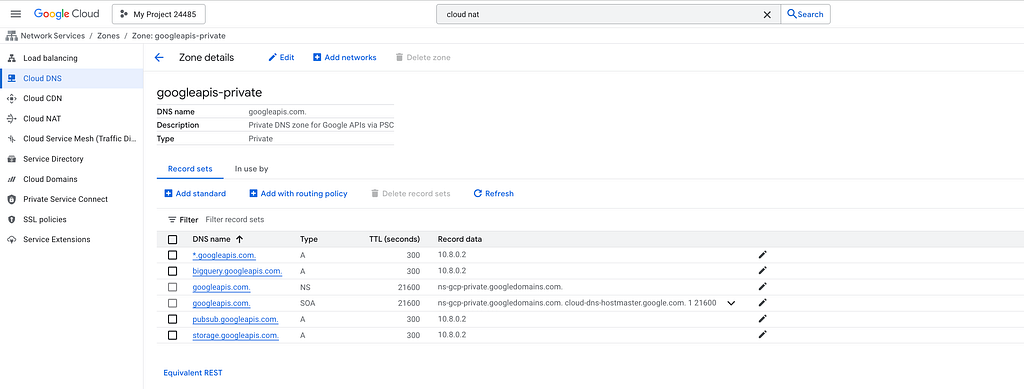
The wildcard record catches all Google API subdomains, and the specific records for storage, bigquery, and pubsub are also created explicitly. All resolve to the same PSC endpoint, which is a reverse proxy managed by Google inside your VPC.
SSH into the test VM and check DNS:
gcloud compute ssh test-vm \
 - zone=us-central1-a \
 - tunnel-through-iap \
 - command="nslookup storage.googleapis.com"
You should see:
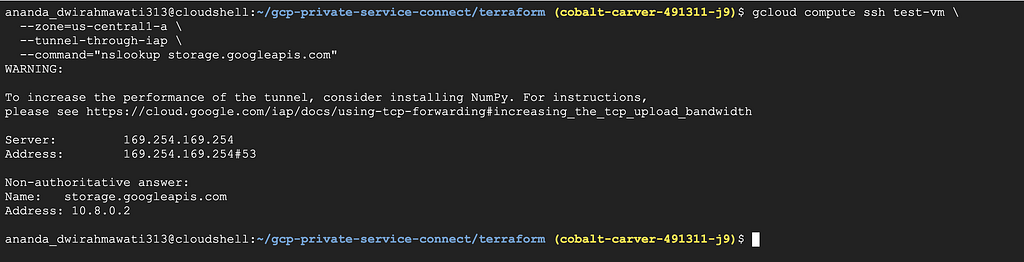
You should see the private endpoint IP, not the public 142.250.x.x range.
Let’s verify with dig:
gcloud compute ssh test-vm \
 - zone=us-central1-a \
 - tunnel-through-iap \
 - command="dig +short storage.googleapis.com"
Should return: 10.8.0.2

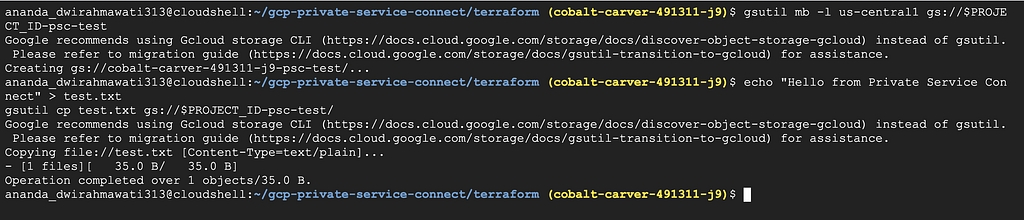
Let’s make sure API calls actually work. Create a test bucket and upload a file:
gsutil mb -l us-central1 gs://$PROJECT_ID-psc-test
echo "Hello from Private Service Connect" > test.txt
gsutil cp test.txt gs://$PROJECT_ID-psc-test/
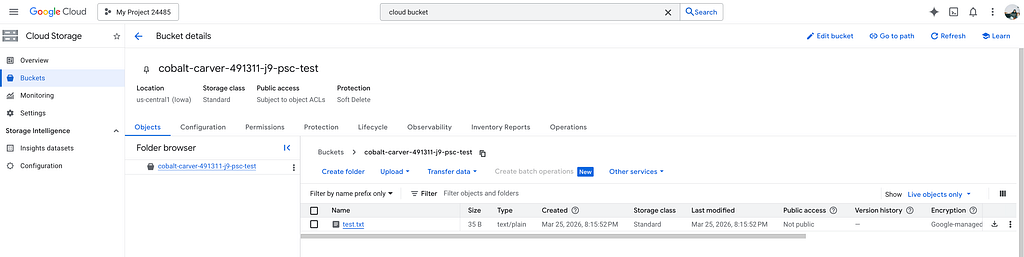
Make sure the file is exist
Now access it from the test VM using gsutil — it automatically uses the VM’s service account credentials (the Terraform config attaches test-vm-sa with roles/storage.objectViewer):
gcloud compute ssh test-vm \
  --zone=us-central1-a \
  --tunnel-through-iap \
  --command="gsutil cat gs://$PROJECT_ID-psc-test/test.txt"
You should see: Hello from Private Service Connect

The VM has no external IP, but it downloaded the file. All traffic went through the Private Service Connect endpoint via 10.8.0.2.
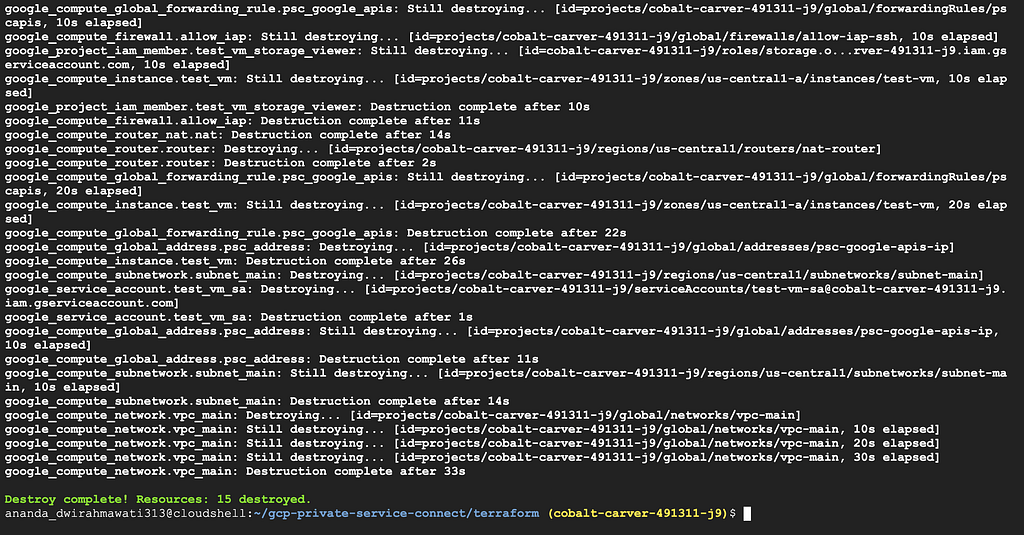
Destroy resources:
cd ~/gcp-private-service-connect/terraform/
terraform destroy
Type yes to confirm.
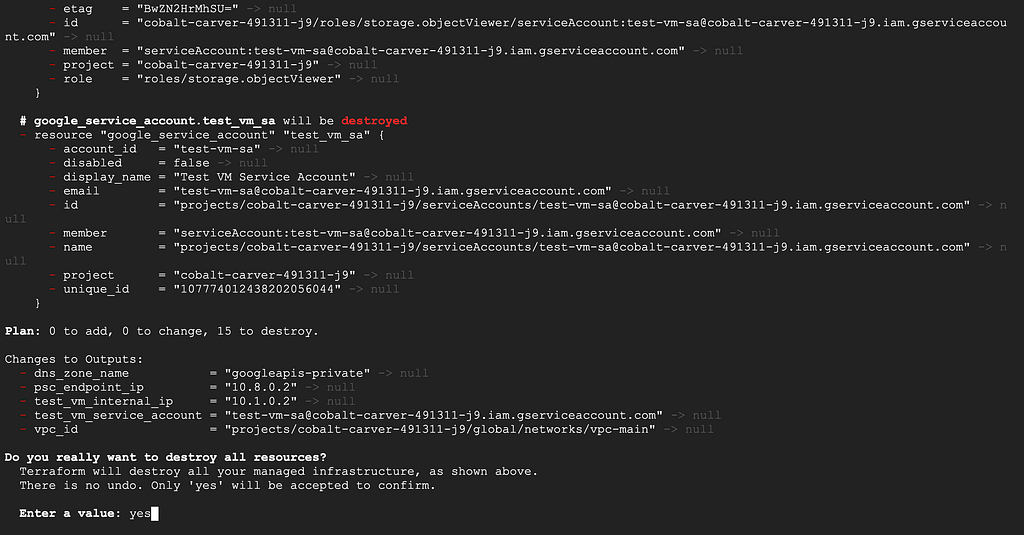
Wait until all resources are destroyed:
Delete the test bucket:
gsutil rm -r gs://$PROJECT_ID-psc-test

<hr><p>Accessing Google APIs Privately with Private Service Connect was originally published in Google Cloud - Community on Medium, where people are continuing the conversation by highlighting and responding to this story.</p>